
Start on the official website using your phone's browser. Controls may adapt to the screen width, so some shortcuts appear in different positions from screenshots taken in a wider window.
Sign in through the official website
- Open your phone's browser and go to worbit.io.
- Use Entrar (Sign in) to access your existing account.
- Check that you have reached the platform and whether the selected account is demo or real.
- If you have forgotten your password, use account recovery. Do not create another account just to use your phone.
Find the menus in the compact layout
In the compact navigation shown, the bottom shortcuts are Traderoom, Operaciones (Trades), Cartera (Wallet), Descubrir (Discover) and Perfil (Profile). The Navegación (Navigation) menu at the top opens other areas.
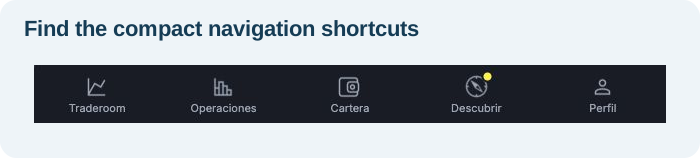
- Cartera: deposits, withdrawals and payment history.
- Operaciones: trade records.
- Perfil: account settings, security and identity verification.
- Traderoom: the main chart and controls area.
If the keyboard covers a button, check that you have finished entering your information and close the keyboard to see the rest of the screen. Scroll through the panel to find fields and messages before completing a step.
Can I install a platform shortcut?
You can access the platform through your phone's browser. If the platform offers an installation option, check whether its instructions apply to your device. If there are no compatible instructions, continue using the browser or ask support for help. Use only Worbit's official channels.
Access from my phone is not working
Check your connection and browser, note the message and follow the loading troubleshooting steps. When asking for help, say whether you use Android or iPhone and which browser is open.
How do you check access? You can open your account, find the menu and view the area you need. Before any trade, check the demo/real account label again.