
Let's check which stage your payment has reached. First, check whether the money has left the bank account or wallet you used. Then check your Worbit history.
Check the deposit on the platform
- On the main screen, open Cartera in the bottom menu, or Billetera in the wider layout. Both labels refer to your account wallet.
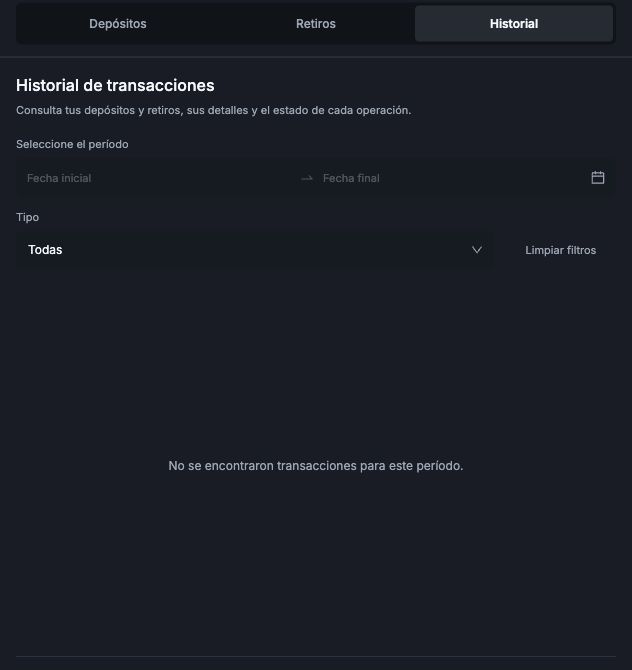
- Select Historial (History).
- Choose the period when you made the payment. If needed, use the Tipo (Type) filter to find deposits.
- Find the record that matches your payment and review the available information.
Has the money not left your account yet?
Check with your bank or wallet whether the payment was completed, rejected or is waiting for you to take action. Resolve this stage before trying again.
Has the money left your account but not appeared in Worbit?
Check that the amount and date match the payment you are looking for. If you cannot find the record, select Limpiar filtros (Clear filters) and search again.
If you still need help, email support@worbit.io. Include the payment method, amount, date and what happened. Keep your payment receipt available in case support requests it.
Do not make another payment just because the first one has not appeared yet. This helps you avoid paying twice while you check what happened.

Deposit amounts, fees and timing
The minimum deposit is 10 USD. The maximum depends on the payment method; check it on the deposit screen. Deposit fees range from 3% to 7% and are deducted from the amount credited. Conversion for local-currency payments is displayed at checkout, and your Worbit balance is credited in USD. See deposit limits, fees, conversion and what to check before paying.
A deposit may be credited instantly or take up to 72 hours, including delays caused by banking issues. If you paid after the payment request expired, contact support and provide your receipt. Do not make a new payment to try to resolve the previous one.