
An asset is the instrument whose price you want to view. Selecting it in the list opens its chart; choosing an asset is different from placing a trade.
Open the list
- In the main area, find the asset at the top.
- Select Añadir activo (Add asset), shown as a plus sign.
- Check that the Mercados (Markets) panel has opened.
- To follow this example, use the Trades tab. Profit Zone and Nitro have separate flows and are not covered in this tutorial.
Find the instrument
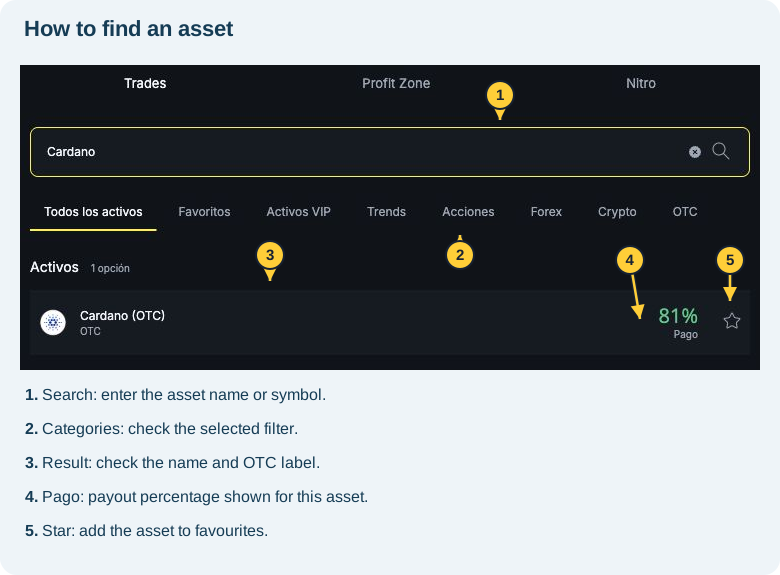
- In Busca por nombre o símbolo del activo (Search by asset name or symbol), enter the name or symbol. This example uses Cardano.
- Adjust the category if needed. The list includes Todos los activos (All assets), Favoritos (Favourites), Activos VIP (VIP assets), Trends, Acciones (Stocks), Forex, Crypto and OTC.
- Check the full result name, including labels such as OTC. Two rows with similar names are not necessarily the same instrument.
- Check the percentage under Pago (Payout). It does not represent the probability of a successful trade.
- Select the result you want and check the name at the top of the platform and in the trading panel.
How do I save an asset to favourites?
The star next to a result is the favourites control. After using it, check the selection indicator and open Favoritos (Favourites) to find the asset again. Adding an asset to favourites does not place a trade.
The asset is missing or locked
- Check the spelling or try the symbol.
- Return to Todos los activos (All assets) to see whether a filter is hiding the result.
- Read any availability or VIP-level notice. An asset found through search may still require specific access.
- If it shows a VIP restriction, check your level and benefits.
If you still cannot find it, tell support the name you searched for, the time and the message displayed. Asset counts and percentages in the screenshots are examples from that session, not a permanent list.
Next step: understand trade amount and timing before using the direction buttons.
Need help? Contact Worbit support.