
To deposit through USDT - BSC, find the wallet QR code or address in Worbit and send funds from your own wallet. Always check the currency is USDT and the network is BSC.
Open the deposit method
- Go to Cartera → Depósitos, or Billetera → Depósitos in the wider layout (Wallet → Deposits).
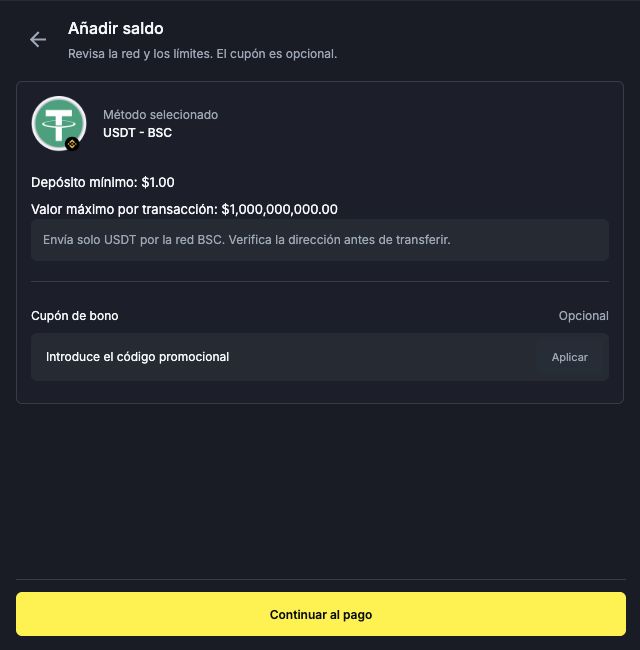
- Under Criptomoneda (Cryptocurrency), select USDT - BSC.
- Check the minimum deposit, per-transaction limit and network instructions displayed on screen.
Where do I add a bonus coupon?
On the review screen, before opening the payment step, find Cupón de bono (Bonus coupon). Enter the code in Introduce el código promocional (Enter the promotional code), select Aplicar (Apply) and check the platform's response. If you are not using a coupon, leave the field empty: it is optional.
Read the bonus conditions before applying it. Enter the coupon on this Worbit screen, not in the wallet address or QR code.
Display the QR code
- Select Continuar al pago (Continue to payment).
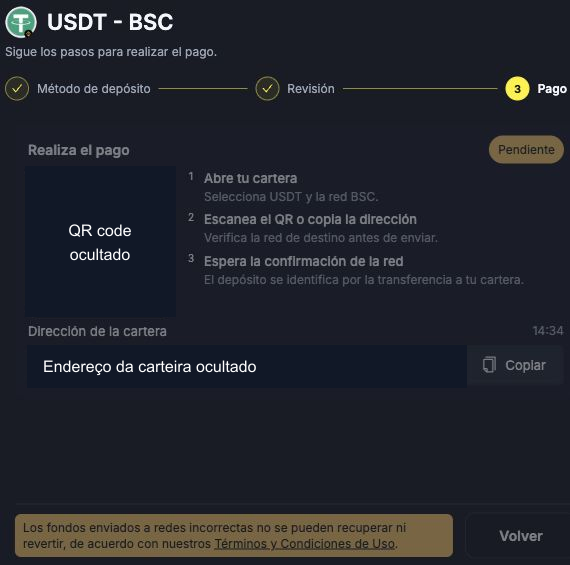
- Wait for it to load. During preparation, the screen may show Creando una cartera... (Creating a wallet...).
- Under Realiza el pago (Make the payment), check the QR code, Dirección de la cartera (Wallet address) and the Copiar (Copy) button.
Pendiente (Pending) means this step is still pending. Displaying the QR code does not mean you have already sent any money.
Where do I enter the deposit amount? In the flow shown, there is no amount field before the QR code. You set the amount to send in your sending wallet. If you want to deposit the equivalent of 100 USD, check the USDT quantity, conversion and costs displayed by that wallet before authorising the transfer. This screen alone does not confirm a transfer.
Deposit amounts, fees and timing
The minimum deposit is 10 USD. The maximum depends on the payment method; check it on the deposit screen. Deposit fees range from 3% to 7% and are deducted from the amount credited. For local-currency payments, conversion is displayed at checkout; your Worbit balance is credited in USD. See deposit limits, fees, conversion and what to check before paying.
The general crediting period ranges from instant to 72 hours; for bank payment methods, this may include banking issues. If you paid after the payment request expired, contact support and provide your receipt. Do not make a new payment to try to resolve the previous one.
Crypto deposits: Worbit only accepts USDT over the BEP20 (BSC) network. Check the currency, network and address before sending. Your balance is credited in USD. Do not use another network to send USDT to this destination.
Check everything in your wallet before sending
- Open your sending wallet and select USDT on the BSC network.
- Use the QR code displayed in your own Worbit session, or select Copiar (Copy) to get the address.
- Check the address, currency, network, amount and costs before authorising the transfer.
Do not copy an address from an article or from another person. If your sending wallet does not offer USDT on BSC, do not substitute another network. The platform warns that transfers sent over incorrect networks cannot be recovered or reversed.
Track confirmation
The on-screen instructions tell you to wait for network confirmation; the deposit is identified through the transfer to the wallet. Keep the receipt and transaction identifier, if provided, and check your Worbit history.
If the amount does not appear, see what to do if your deposit has not appeared or contact in-platform support. Never share your wallet's private keys or recovery words.