
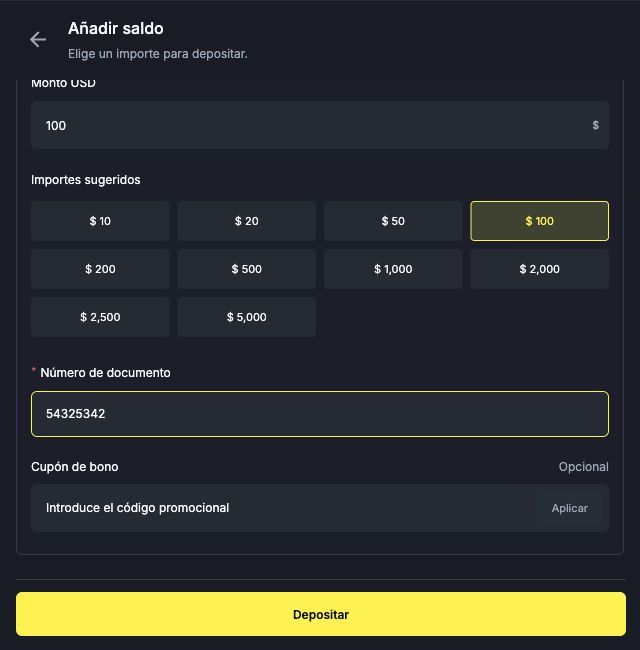
Screenshot example: 100 USD and the fictional document number 54325342 are used only to demonstrate the fields. Enter your own details and the amount you want to deposit. Check the conversion and final total in your checkout. No payment was completed in this example.
To begin, open Cartera → Depósitos, or Billetera → Depósitos in the wider layout (Wallet → Deposits), and choose PSE. Methods vary by country; this walkthrough was recorded using a Colombian account.
Choose the amount and enter your document number
- Under Importes sugeridos (Suggested amounts), select $ 100 to follow the example. You can also enter another amount in Monto USD (Amount in USD), within the displayed limits.
- Complete Número de documento (Document number) and check the digits.
Where do I add a bonus coupon?
While still in Worbit, find Cupón de bono (Bonus coupon) below the document number. Enter the code in Introduce el código promocional (Enter the promotional code) and select Aplicar (Apply). Check the response before continuing. The coupon is optional: if you do not have one, leave the field empty.
Read the bonus conditions before applying it. Entering a code alone does not confirm that it has been accepted.
Open checkout and check the method
- Review the form and select Depositar (Deposit).
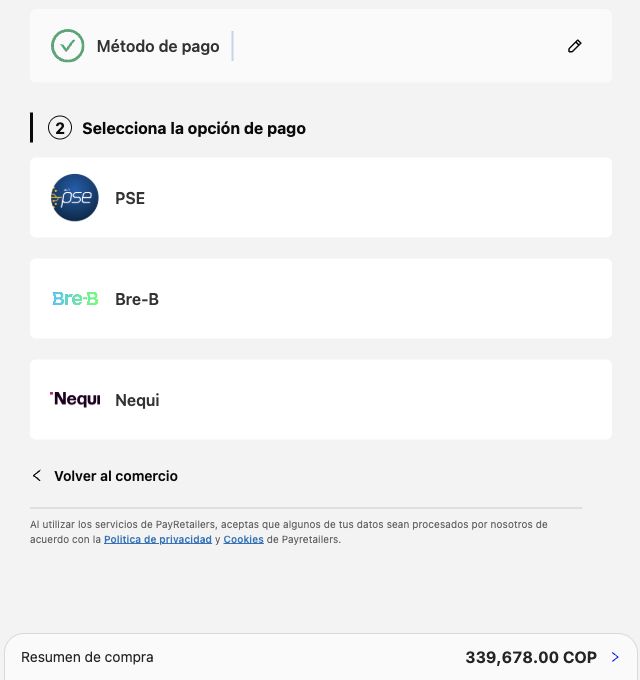
- Wait to be redirected to the payment provider. In the recorded flow, checkout uses PayRetailers and the Latam Pago brand.
- If Selecciona el método de pago (Select the payment method) appears, choose Transferencia bancaria (Bank transfer).
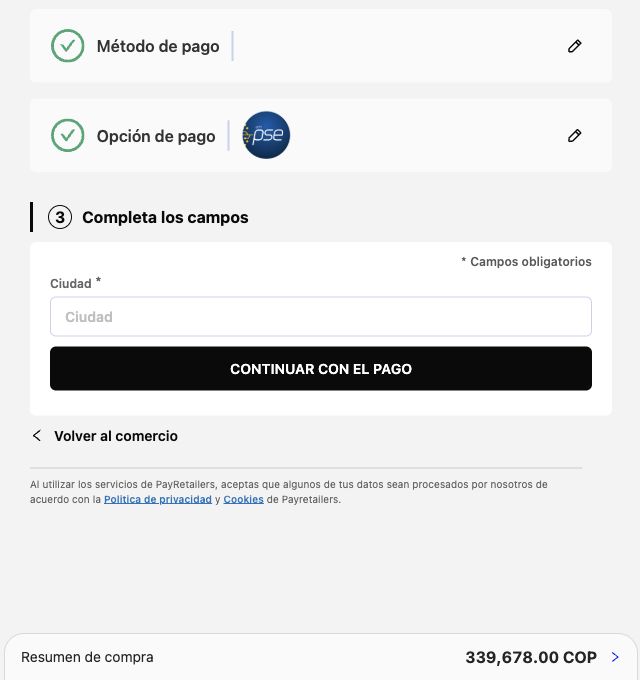
- Under Selecciona la opción de pago (Select the payment option), select PSE, even if you already chose it in Worbit.
Check the details required by the provider
- Under Completa los campos (Complete the fields), enter your city in Ciudad (City).
- Check the total in Resumen de compra (Purchase summary), shown in Colombian pesos (COP).
- After reviewing the details and total, select CONTINUAR CON EL PAGO (Continue with payment) to proceed. Read the following instructions before authorising any payment.
Check the total again after choosing the method. In the recorded example, the summary changed from 329,784.00 COP to 339,678.00 COP. These amounts are not a fixed exchange rate or a promise of cost. If there is a difference you do not understand, check with support before paying.
Check the result
Opening checkout does not mean the deposit has been paid. After completing payment, keep the receipt and check Cartera → Historial (Wallet → History).
If money leaves the payment account but does not appear in Worbit, avoid repeating the payment before checking the previous one. See what to do if your deposit has not appeared or contact in-platform support.
Deposit amounts, fees and timing
The minimum deposit is 10 USD. The maximum depends on the payment method; check it on the deposit screen. Deposit fees range from 3% to 7% and are deducted from the amount credited. Conversion for local-currency payments is displayed at checkout, and your Worbit balance is credited in USD. See deposit limits, fees, conversion and what to check before paying.
A deposit may be credited instantly or take up to 72 hours, including delays caused by banking issues. If you paid after the payment request expired, contact support and provide your receipt. Do not make a new payment to try to resolve the previous one.