
To manage a mark, first select it on the chart. HERRAMIENTAS GRÁFICAS (Drawing tools) controls are separate from indicator controls.
Select the mark
- Click directly on the line or drawing.
- Check that the editing toolbar appears.
- If only the chart moved, stop and select the mark again. Dragging an empty area navigates the chart.
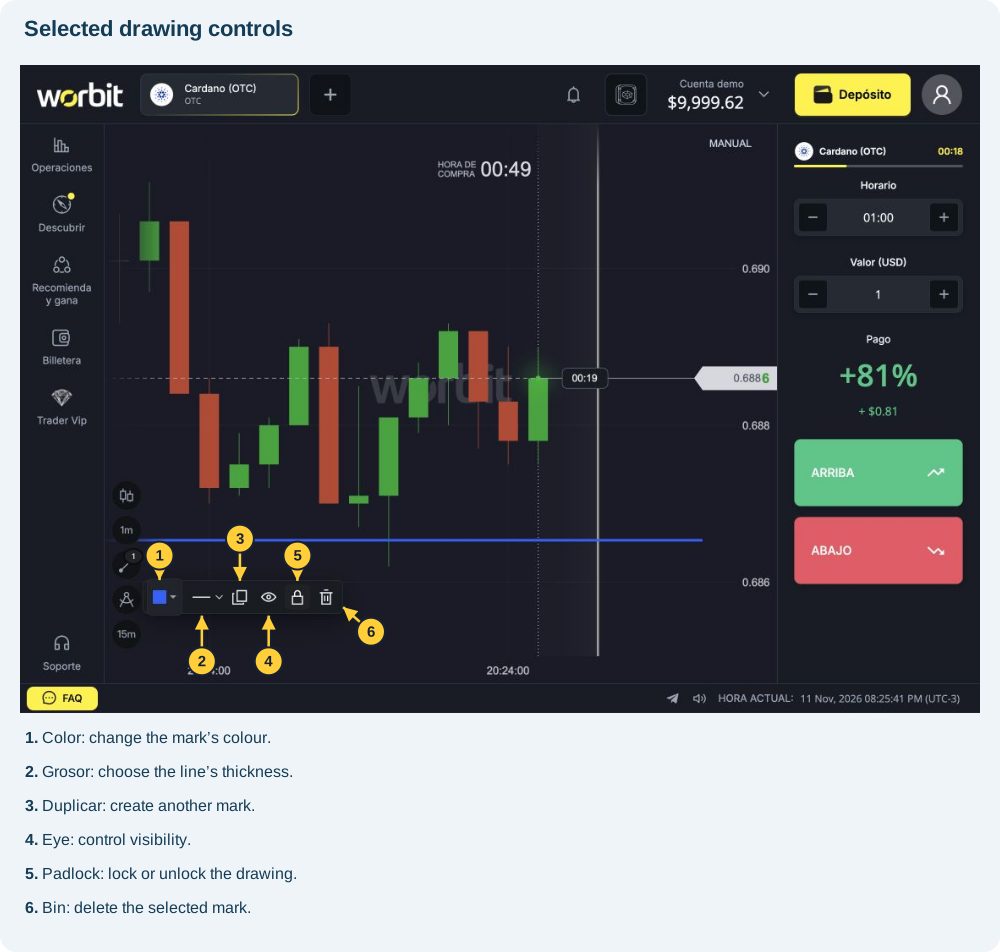
Adjust appearance and position
Use Color (Colour) and Grosor (Thickness) to change appearance. In the test, moving from the second to the third thickness option made the horizontal line thicker.
To reposition, select the drawing and use its control points. Unlock it first if needed. Distinguish moving the mark from navigating the chart.
What does each control do?
| Control | Purpose |
|---|---|
| Duplicar (Duplicate) | Create another mark from the selected one. |
| Ocultar / mostrar (Hide / show) | Toggle visibility without deleting. |
| Bloquear / desbloquear (Lock / unlock) | Control position editing and help prevent accidental movements. |
| Eliminar (Delete) | Delete the selected mark. |
If you hide a mark and then cannot select it, do not create multiple replacement copies. Check available visibility controls and ask support if needed. Recovering hidden drawings may depend on the interface.
How to delete a line
- Select the correct line.
- Check its editing toolbar.
- Select the bin — Eliminar (Delete).
- Verify that the mark disappeared.
In the test, deletion was immediate without an extra confirmation. Check your selection before clicking. Do not rely on undo without checking availability.
Deleting drawings does not remove trades from history, return funds or cancel open trades. To remove an indicator, use Indicadores → Añadido (Indicators → Added), as explained in the indicator guide.
See also: drawing lines and other marks · indicator guide · trade cancellation.