
The candle period organises the chart view. Trade timing concerns the closing of the submitted contract. They appear on the same screen but serve different purposes.
Candle period
Each candle summarises price changes over an interval. With 1m selected, the chart uses one-minute candles. Changing the period changes how movements are grouped.
A candle may have started before you opened your trade. Your trade's start therefore need not match the candle's start.
Where do I change the candle period?
- On the chart's left side, find the button showing the current interval, such as 1m.
- Select it to open Período de vela (Candle period).
- Choose an interval. The recorded screen offers 1 minute, 2 minutes, 5 minutes, 15 minutes, 1 hour and 1 day.
- Check the selected interval and chart view.
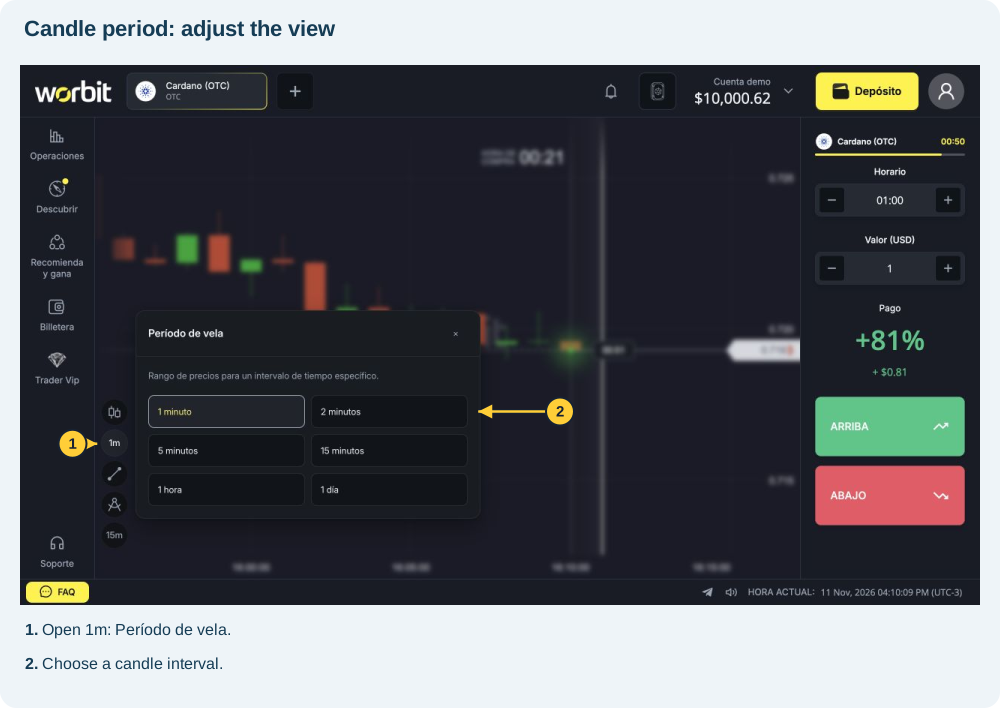
Example: choosing 5 minutes changes the interval represented by each candle; it does not set a five-minute trade.
Visible chart period
Período (Period), with options such as 15m, refers to the visible chart time range. It differs from each candle's interval. A fifteen-minute window can contain several one-minute candles.
Trade timing
Check Horario (Time) in the panel. After submitting, open Operaciones and check Hora de cierre (Closing time). Use that record to verify when the trade ends.
Do not calculate the duration just by watching a candle. In the demo example, Horario showed 01:00, but the trade submitted during the minute ended at the next minute boundary. Do not automatically interpret 01:00 as sixty full seconds after clicking. Check the countdown and recorded closing time.
Where do I change trade timing?
- Find Horario in the trading panel, above Valor (USD).
- Use the adjacent minus and plus buttons to adjust the available option. In the test, plus changed 01:00 to 02:00 and minus returned it to 01:00.
- Check the displayed value before deciding to submit.
- After submitting, open Operaciones and check the record's closing time.
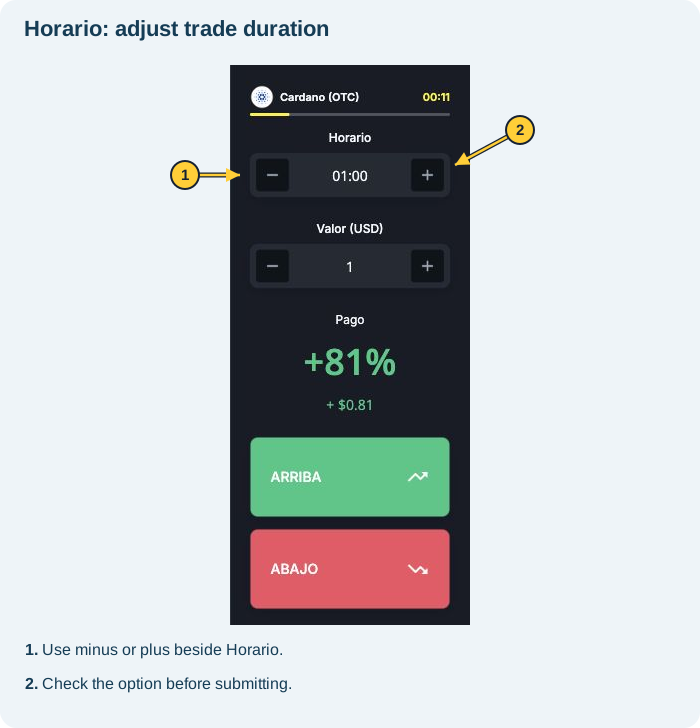
Compare the three questions
| I want to know… | Where to check |
|---|---|
| How much time each candle represents | Período de vela (Candle period) |
| Which chart time range I am viewing | Período (Period) and chart navigation |
| When this trade ends | Hora de cierre (Closing time) in the record |
Does changing the chart alter an open trade?
Do not treat a view change as a contract change. After adjusting the view, check the existing trade's recorded time. An open trade cannot be cancelled. See guidance before submitting.
Continue with chart controls and trade amount and timing.
Why does the opening time show :00 seconds?
The displayed time identifies the reference candle's minute, not the exact second you clicked. Entries up to the 30-second mark belong to the same candle; later entries belong to the next. Check the close for your setup. See examples and the distinction between time and price in entry times, the 30-second rule and closing.