Google Authenticator must be enabled on your account before you can request a withdrawal. This protection is called two-factor authentication, or 2FA: as well as your password, you use a confirmation code generated by the app.
Having the app installed on your phone does not mean this protection is already active in Worbit. You need to link your account and complete validation on the platform.
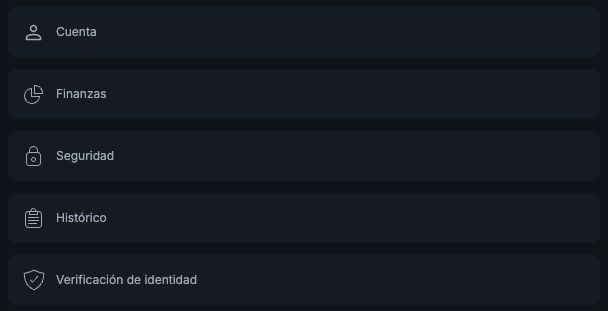
- Open Perfil → Seguridad (Profile → Security).
- Find Autenticación de múltiples factores (Multi-factor authentication).
- Use Google Authenticator to scan the QR code displayed by Worbit.
- Store the recovery key somewhere secure and private. You will need it if you lose access to your phone.
- Enter the code generated by Google Authenticator into Worbit and select Validar (Validate).
- Check the platform's activation confirmation before continuing with a withdrawal.
You find the code in the Google Authenticator app: do not wait for it to arrive by email.
The screen explains that, if you refresh the page during setup, you will need to scan the QR code again. Do not share the QR code, recovery key or access codes.
If you cannot confirm activation, email support@worbit.io.
Planning to withdraw? In addition to active 2FA, you need approved KYC and a confirmed email address. See identity verification and how to request a withdrawal.