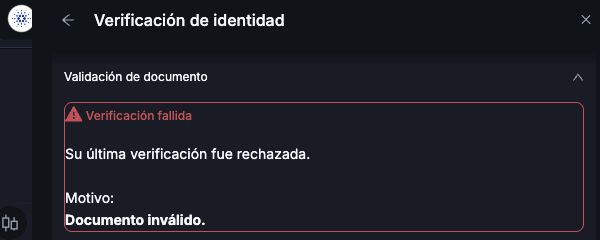
If verification shows Rechazado (Rejected), the document you submitted was not approved. First, check the reason so you understand what needs correcting before submitting it again.
Check the reason for rejection
- Open Perfil → Verificación de identidad (Profile → Identity verification).
- Expand Validación de documento (Document validation).
- Read Verificación fallida (Verification failed) and the information under Motivo (Reason).
In the example, the platform displays Documento inválido. (Invalid document.) That message alone does not explain whether the issue is the document type, details or image. If you cannot identify what needs correcting, check with support before resubmitting.
Check the details and prepare the images
- Make sure the document type and number you entered match your document.
- Use your own document, accepted for the country of your account. If you are unsure about the available option, ask support for guidance.
- Prepare clear images of the front and back, without cropping, glare or hidden information.
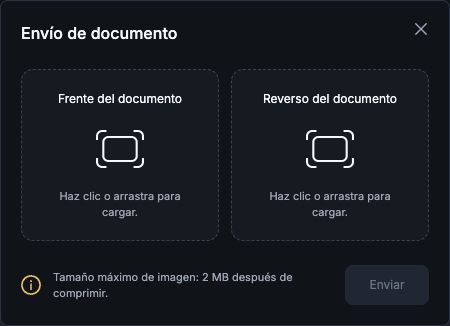
- Follow the limit shown in the upload window: 2 MB per image after compression.
These checks help you prepare your submission; they do not mean that all of these issues caused your rejection.
Open the upload window again
- In the same verification area, select Enviar foto del documento (Upload document photo).
- In Envío de documento (Document upload), choose the front under Frente del documento and the back under Reverso del documento.
- Check the files before selecting Enviar (Send). Also follow the main form's instructions if any details need correcting.
To understand the form fields, see how to complete identity verification (KYC).
Track the new review
KYC review can take up to 72 hours. Check its status in the verification area. Resubmitting a document does not guarantee automatic approval.
If you cannot resubmit, the reason is still unclear or the review remains pending after the stated period, email support@worbit.io. Include the message shown and when you submitted the document. Send documents only through the official process specified by support.
Need to withdraw? You need approved KYC, active Google Authenticator and a confirmed email address. See how to request a withdrawal and how to set up 2FA.