
To check a result, consult the record of the closed trade. A line moving in your favour for a few seconds does not mean you have already won: while the trade is in progress, its result is not yet final.
Open the correct record
- At the top, check whether you are using Cuenta demo (Demo account) or Cuenta real (Real account).
- Open Operaciones (Trades).
- Check Tipo de operación (Trade type). Use Todos (All) to view all available types.
- Find the trade by asset, amount and time.
- Select the card to open its details.
Understand each field
| Field | What to check |
|---|---|
| Asset and direction | Full name, including OTC, and Arriba (Up) or Abajo (Down) direction. |
| Importe invertido (Amount invested) | The amount used for that trade, not the total account balance. |
| Información (Information) | Recorded percentage and trade identifier. The copy icon lets you copy its ID. |
| Precio de apertura (Opening price) | Opening reference price and the recorded time. |
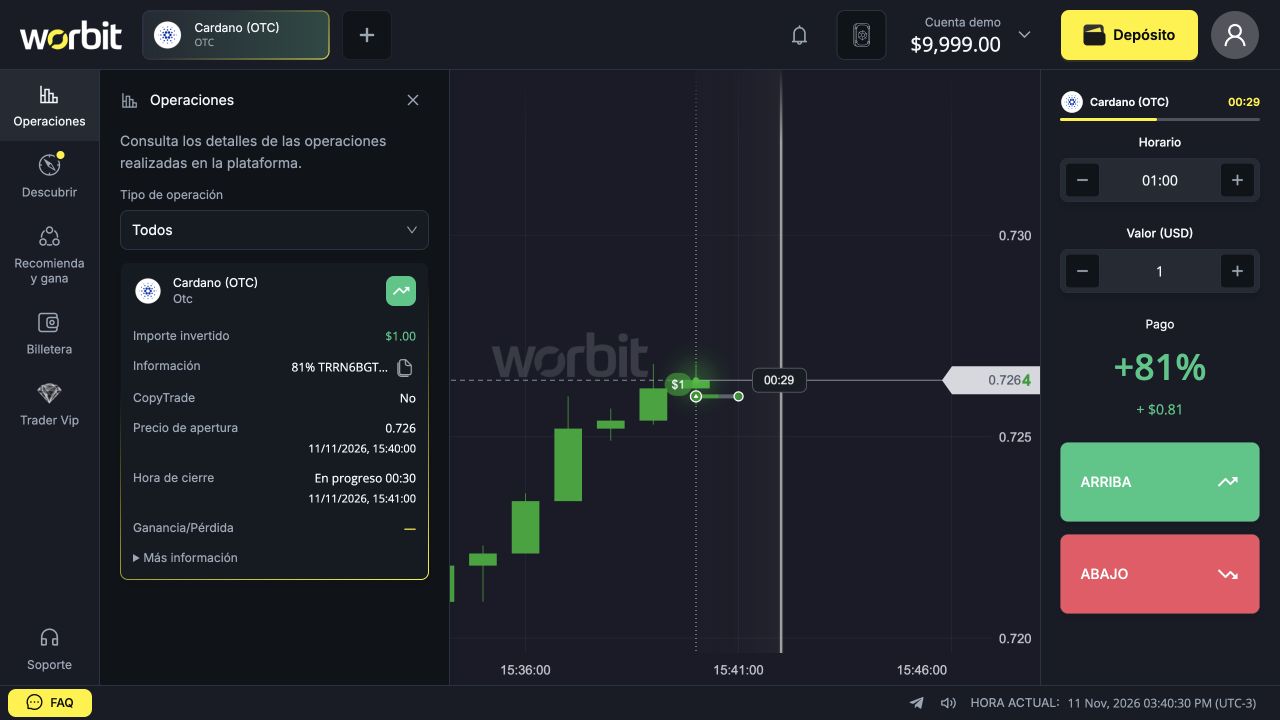
| Hora de cierre (Closing time) | Closing time and progress indication while the trade is open. |
| Ganancia/Pérdida (Profit/Loss) | Financial result displayed after completion. |
Wait for completion
En progreso means In progress. In the example, Ganancia/Pérdida still displayed a dash. Do not interpret that dash as a tie or loss. Wait for the trade to close and check the record again.
Compare a win and a loss
The examples below were recorded with simulated funds in the demo account to explain the interface. They are not a strategy or a forecast of future results.
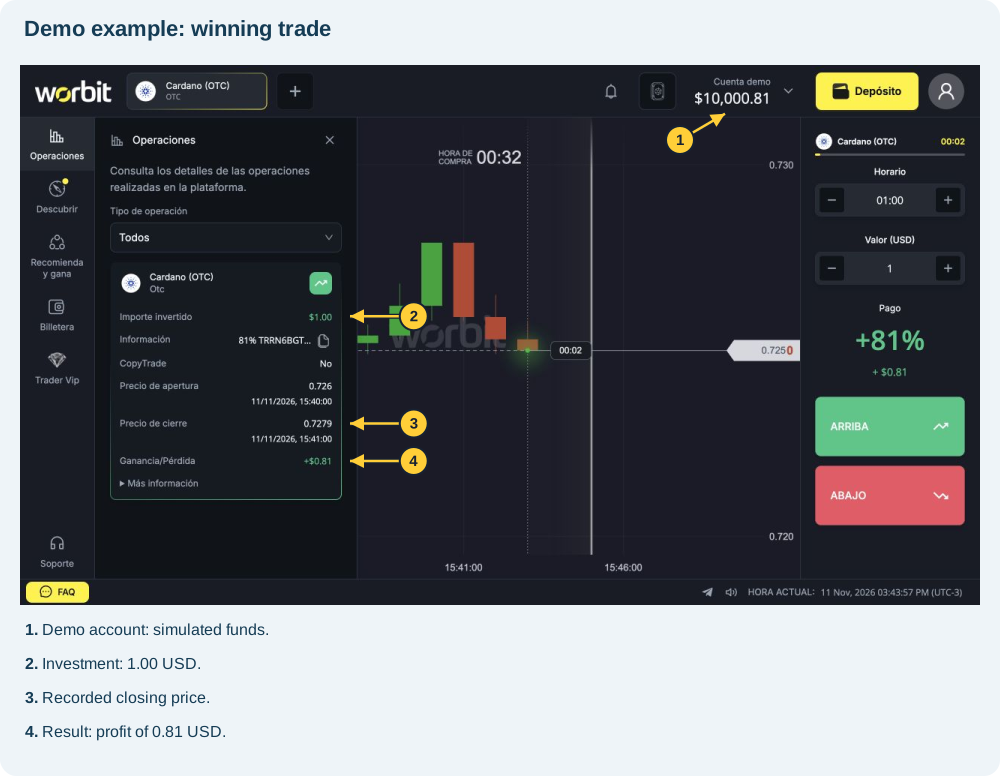
Recorded example: win
In the demo account, a 1 USD Arriba (Up) trade opened at 0.726 and closed at 0.7279. The record shows an 81% payout and Ganancia/Pérdida +0.81 USD. The demo balance went from 10,000.00 USD before opening to 10,000.81 USD after closing. Profit was 0.81 USD; the trade's total return was 1.81 USD.
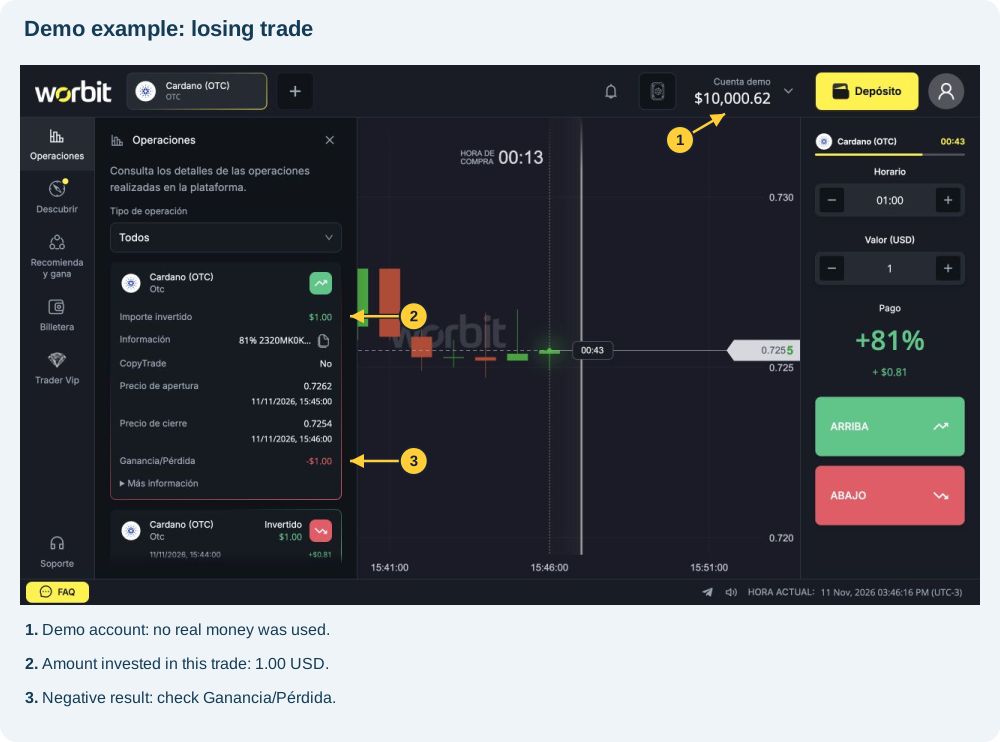
Recorded example: loss
The loss was the third demo trade: Arriba (Up), opening at 0.7262 and closing at 0.7254. It used 1 USD and closed with Ganancia/Pérdida −1.00 USD. This represents losing the amount invested in that trade. Before it, the demo balance was 10,001.62 USD; afterwards, it was 10,000.62 USD. There were three 1 USD examples: two wins of 0.81 USD and one loss of 1 USD. Do not confuse the cumulative balance with the individual result on this card. The payout percentage does not protect against loss.
For a winning trade, distinguish profit from the amount returned together with the investment. For a losing trade, check the negative amount in the record. See the calculations in amount invested, profit and total return. For a tie, see the rule for returning the amount invested.
The result looks different from what I saw on the chart
Check the asset, direction, opening price and recorded time. A candle combines several price movements; its colour alone does not prove your trade's result. The price at the top of the chart may already relate to a time after the trade closed.
If you are still unsure, save the ID and request a review from support. Do not place another trade to test or offset the result.
Why does the opening time show :00 seconds?
The displayed time identifies the reference candle's minute, not the exact second you clicked. Entries up to the 30-second mark belong to the same candle; entries after that point belong to the next one. Check the closing time for the selected setup. See the examples and distinction between time and price in how entry times, the 30-second rule and closing work.
The panel is empty or I cannot find a trade
- Check that you are in the intended account: Cuenta demo or Cuenta real.
- Under Tipo de operación, select Todos to remove the trade-type filter.
- Check whether the trade was actually submitted: entering an amount and time does not confirm submission.
- If there was an error or uncertainty during submission, collect the asset, time including time zone, amount and message for support before repeating the action.
In the wider layout, Operaciones is in the left menu; in the compact layout, look for the same name in the bottom menu. Deposits and withdrawals are in a different area: wallet history.