
When you enter Worbit, start by identifying the selected account and the main menus. You do not need to place a trade to explore the screen.
Check whether you are using the demo or real account
At the top, find the account name next to the balance. Cuenta demo (Demo account) uses a demonstration balance; Cuenta real (Real account) involves real money. Open Cambio de cuenta (Switch account) to check the options. See the difference between demo and real accounts.
Identify the screen areas
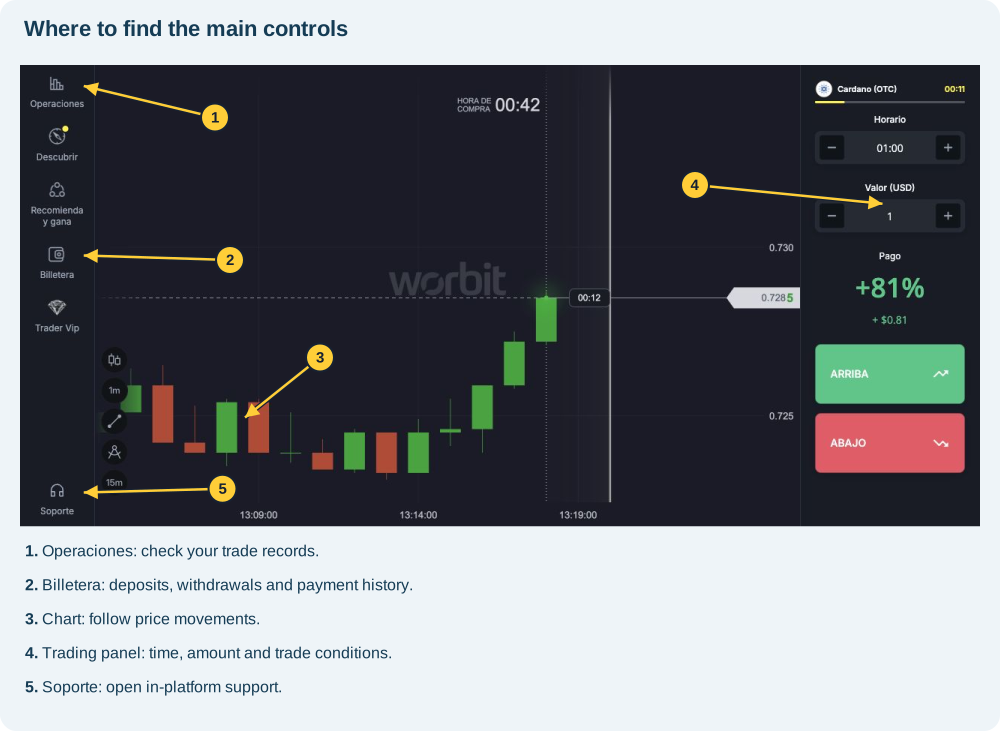
- Asset: the name at the top identifies the displayed instrument, such as Cardano (OTC). The add-asset button opens the search.
- Chart: the central area displays price movements.
- Trading panel: contains Horario (Time), Valor (USD) (Amount), Pago (Payout) and the direction buttons.
- Navigation menu: provides access to history, the wallet and the platform's programmes.
- Profile: brings together account settings, security, identity verification and languages.
Choose the route that matches what you need
| I want to… | Where to start |
|---|---|
| Deposit or withdraw | Cartera / Billetera (Wallet) |
| Check a payment | Cartera → Historial (Wallet → History) |
| Check a trade | Operaciones (Trades) |
| Upload or correct my document | Perfil → Verificación de identidad (Profile → Identity verification) |
| Set up the authenticator | Perfil → Seguridad (Profile → Security) |
| Understand my VIP level | Trader Vip |
| Ask for help | Soporte (Support) |
My screen looks different from the screenshot
In wider windows, the menu is on the left and the wallet is labelled Billetera. Compact navigation has shortcuts at the bottom, including Cartera (Wallet) and Perfil (Profile). Additional features may be under Navegación (Navigation) in the upper-left corner. Positions change; look for the control's name.
How do I know I am in the right place?
Check the open panel's title before entering details. Use Cerrar (Close) or the panel's X to return to the main area. Avoid using ARRIBA (Up) and ABAJO (Down) to test navigation: those buttons submit trades.
Continue with how to choose an asset.